Why this guide?
This guide walks you through the required steps to complete the Conference V2 Checkout and prepare your event for EventCAT’s real-time AI translation and captions.
Completing checkout means assigning passes to your scheduled sessions. All sessions must be covered with valid passes (100% pass coverage) before you can rehearse or go live.
1. Understanding the Checkout Page
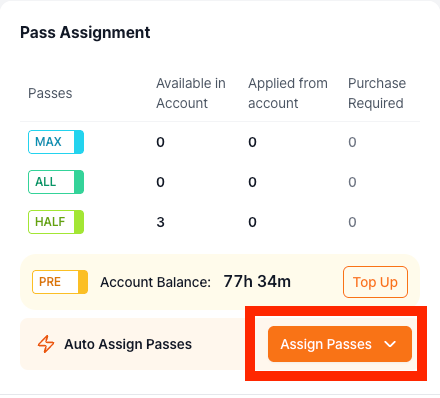
The Checkout page is where you manage pass assignments for your conference.
Here you will:
Assign passes to scheduled sessions
Ensure 100% pass coverage across the conference
Choose between automatic and manual pass assignment
Track pass usage from the top-right corner, including:
Total Day Passes available in your account
Passes applied to this conference
Additional passes required for full coverage
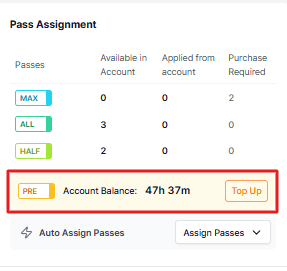
Prepaid Credit Balance: your current Prepaid credit in hours and minutes, with a Top Up button
2. Assigning Passes Using Auto Assign
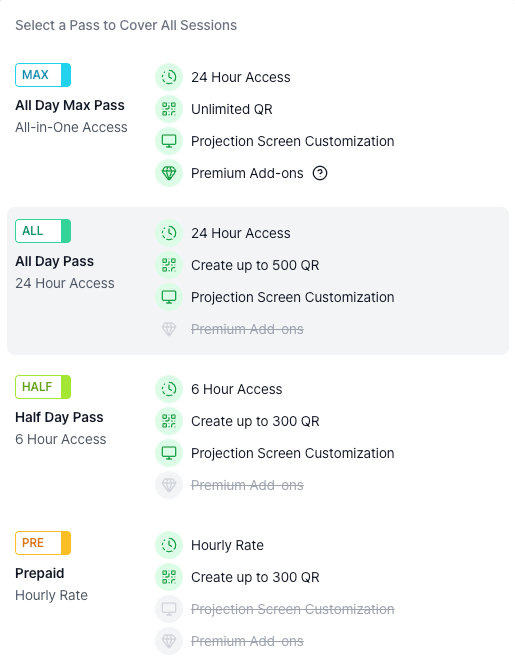
Auto Assign Passes is the fastest way to cover all scheduled sessions.
Click Auto Assign Passes
Select the pass you want to bulk assign to all sessions
The system automatically fills the calendar with the selected pass and calculates how many passes are available in your account.
If additional Day Passes are needed to cover the conference beyond your current balance, they will appear as Purchase Required.
For Prepaid, the Account Balance row shows your available credit. If your balance is insufficient, click Top Up to add more credit before proceeding or enable ‘Auto-Recharge’ to proceed to the next step.
For detailed instructions regarding Prepaid Credits, please refer to ‘4. Using Prepaid Credits’ below.
Auto Assign completes 100% session coverage. If payment is needed, the checkout total will appear; otherwise, you can proceed to Rehearse & Go Live.
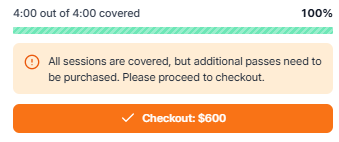
Once auto assignment is complete, you can freely review, remove or change any assigned pass by clicking directly on it in the calendar before proceeding to the next step.
3. Assigning Passes Manually (Optional)
Manual pass assignment gives you full control over where passes are applied.
Hover over to the scheduled session and click to open a pass selection modal
Click the desired pass to continue assigning the pass
Repeat until all sessions are covered
Just like the Auto Assign, if there are not enough passes in your account, the system automatically calculates how many additional passes are required and prompts you to checkout.
For efficiency, we recommend auto-assigning passes first and then making small manual adjustments if needed.
4. Using Prepaid Credits
4.1 Topping Up Your Prepaid Credits
If your Prepaid Account Balance does not have enough credit to cover the sessions you’ve assigned, you can top up directly from the checkout page without navigating away.
Click the Top Up button in the Account Balance row
Select the number of hours to add: preset options are 1, 5, 10, or 20 hours, or enter a custom amount
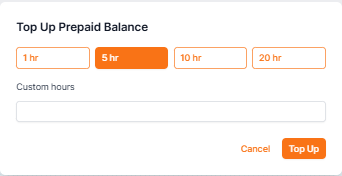
Complete the payment, and you will be returned to the checkout page automatically
A confirmation message will appear, and your updated Account Balance will be reflected immediately
4.2 Payment Method & Auto-Recharge for Prepaid Usage
As an alternative to maintaining a positive Account Balance, save a payment method and enable Auto-Recharge. This allows sessions to start even at zero balance, with charges processed automatically as they run.
To add a payment method and enable auto-recharge:
Go to Settings → Payments
Add a credit or debit card within the Stripe portal accessible under Manage Payment Methods
Then toggle Auto-Recharge on
5. Confirm 100% Pass Coverage with Completed Payments
Once all sessions are covered and paid:
The coverage indicator shows 100%
The Proceed to Rehearse & Go Live button becomes available
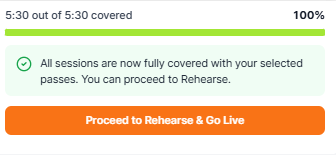
You can now move forward with session rehearsal and live events using EventCAT AI.
Important notes
100% pass coverage is required to use EventCAT’s real-time AI features
You cannot rehearse or go live unless all sessions are covered
Pass availability and required purchases are calculated automatically
Any schedule changes may require reassigning passes
If your Prepaid Account Balance falls below 60 minutes, a low-balance warning banner will appear on the checkout page — top up before your session to avoid interruption
If you stop a Prepaid session before the minimum charge threshold and wish to resume, no additional payment is required — click Go Live again as long as your Account Balance is positive
If this guide does not resolve the issue, users can reach out for further assistance:
Go to EventCAT Help Desk
Need more help? contact@eventcat.com
Was this article helpful?
That’s Great!
Thank you for your feedback
Sorry! We couldn't be helpful
Thank you for your feedback
Feedback sent
We appreciate your effort and will try to fix the article