In Conference, selecting a glossary is optional, but it is especially critical in technical fields such as medicine, aviation, engineering, and IT, where accurate terminology is crucial.
✔ How to Set It Up:
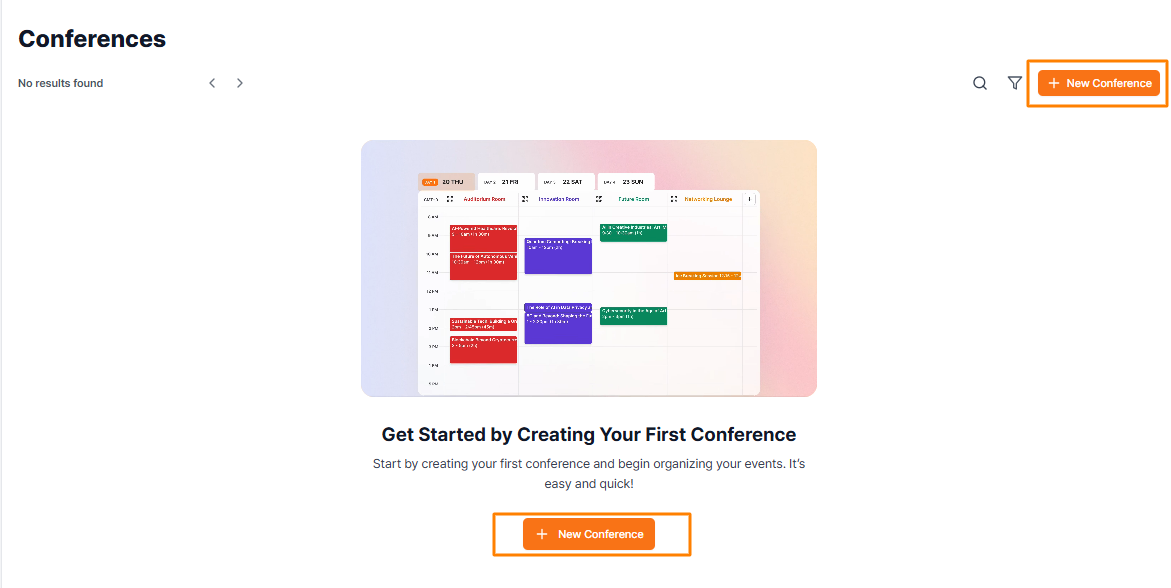
Enter your conference information
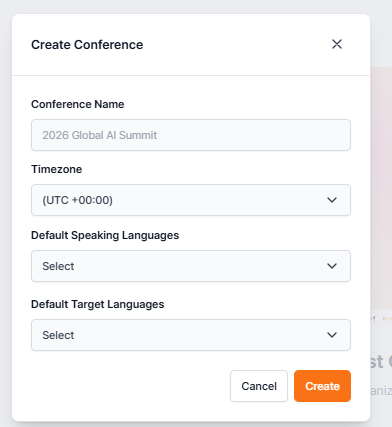
Then click Create
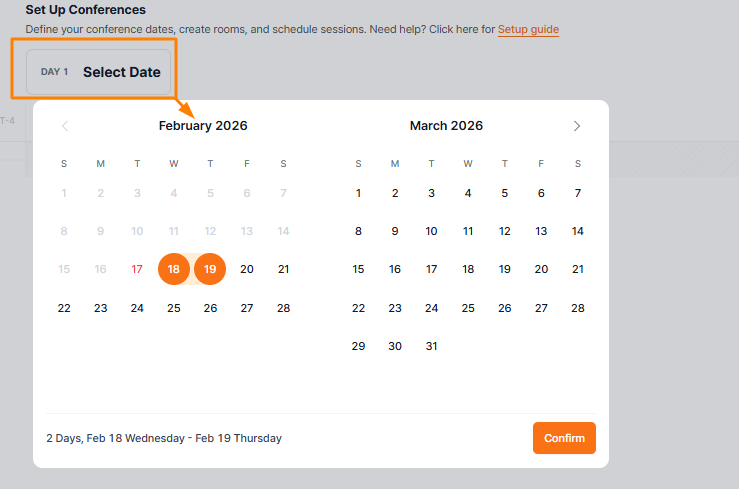
Select the date and click the days your Conference will be held. Once they are selected, click Confirm
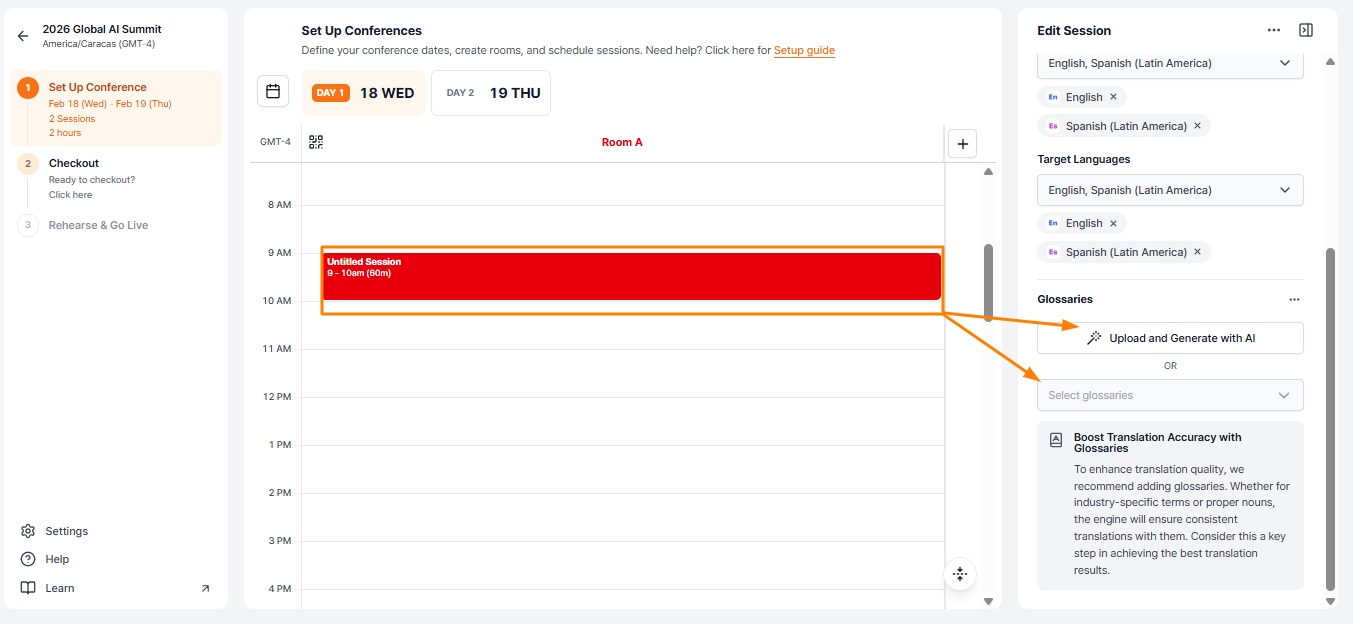
6. By default, the first day of your event will be scheduled at 9:00 AM. Click on the red session block where it appears, and a panel will automatically open on the right side where you can edit the session details, such as the session name, languages, and glossaries.
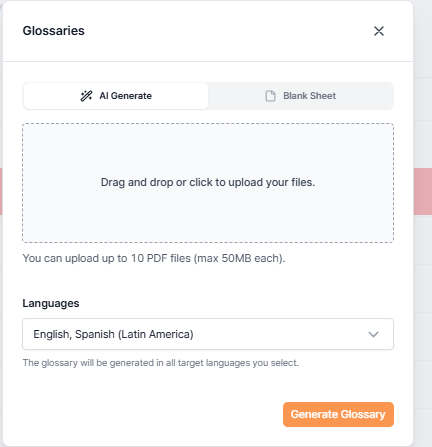
If you click “Upload and Generate with AI”, the Glossaries panel opens.
Here you can:
Upload PDF files (drag and drop or click to upload; up to 10 files, max 50 MB each).
Select the target languages.
Choose AI Generate to create a glossary automatically or Blank Sheet to create one manually.
Click Generate Glossary to create the glossary.
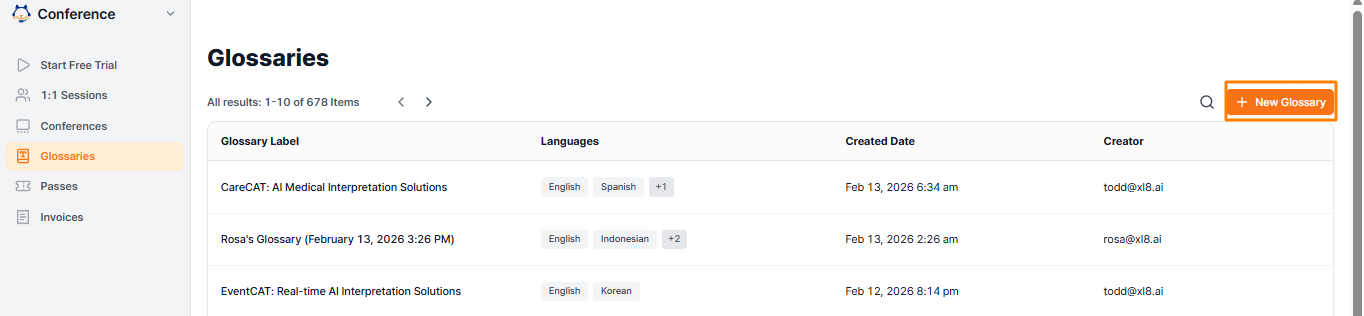
If you click “Select Glossaries”, a list will open showing all the glossaries you have created or uploaded to the platform. These can be managed directly from the Glossaries page: https://app.eventcat.com/v2/conferences/glossaries
Important Reminder!
A glossary is not just a setup step; it directly affects the quality of translation.
Even a few minutes of preparation can greatly improve the clarity and professionalism of your event.
Related Article:
How to Use EventCAT Conference (v.2.0)
How to Create a Glossary in EventCAT
EventCAT Conference Quick Setup Guide
If this guide does not resolve the issue, users can reach out for further assistance:
Go to EventCAT Help Desk
Need more help? contact@eventcat.com
Was this article helpful?
That’s Great!
Thank you for your feedback
Sorry! We couldn't be helpful
Thank you for your feedback
Feedback sent
We appreciate your effort and will try to fix the article