This month, EventCAT introduces new tools that give hosts and participants more flexibility during live multilingual sessions. You can now update speech-to-text guidance without restarting a session, scroll freely while Text-to-Speech continues playing, see exactly what will happen when a plan expires, and receive clearer feedback when connection quality may affect translation speed.
These updates are designed to give you greater visibility and control before and during every live session.
Update Speech-to-Text Guidance While the Session Is Live
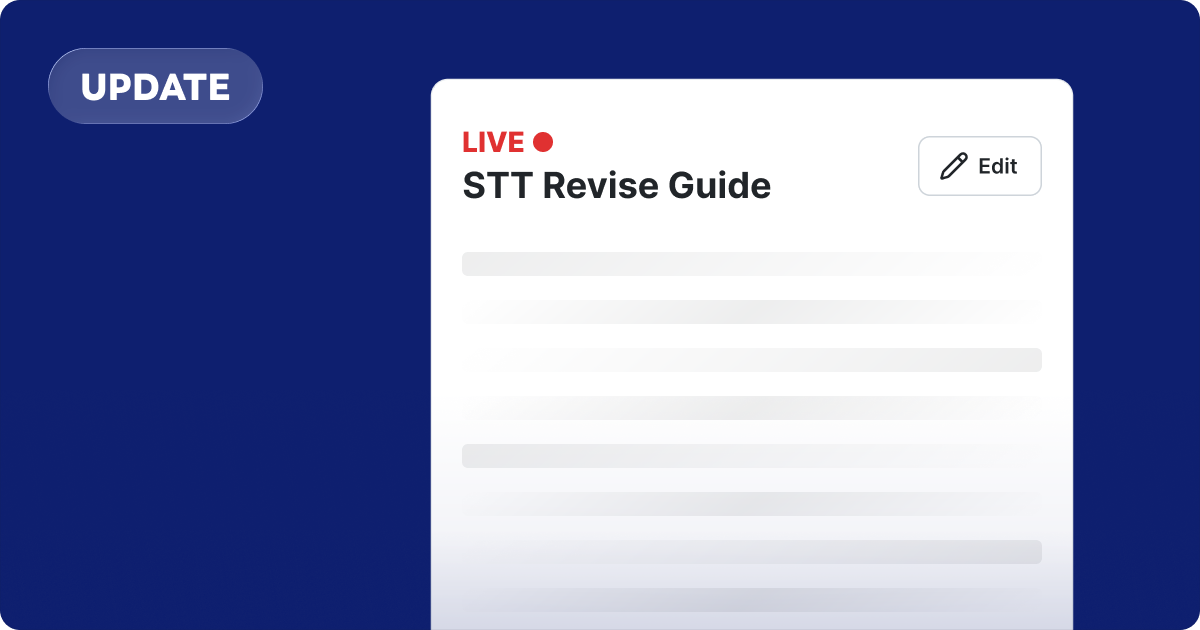
The STT Revise Guide can now be edited and saved while a session is already in progress. Hosts can correct recurring transcription issues or refine instructions without stopping and restarting the session.
✔️ Correct frequently misheard names or terms during a live session
✔️ Add or adjust transcription instructions as needed
✔️ Request changes such as removing filler words
✔️ Apply updated guidance without interrupting the session
Open Edit STT Revise Guide in the Session Controller, make your changes, and save. The updated guidance will begin applying from the next finalized sentence.
View STT Revise Guide Instructions
Scroll Freely While Text-to-Speech Keeps Playing

Participants now have more control over the audience session screen while Text-to-Speech is active. Audio playback continues even when viewers scroll away from the sentence currently being read.
✔️ Scroll up to review earlier captions and translations
✔️ Scroll down without interrupting audio playback
✔️ Continue listening while exploring other parts of the transcript
✔️ Return instantly with the new Go to Current Sentence button
The screen will continue following the sentence currently being read until the viewer scrolls manually. Once they do, control remains with the viewer. Selecting Go to Current Sentence returns the screen to the current live reading position.
Know Exactly What Happens When Your Plan Expires

Eligible Day-pass and Prepaid sessions now display a confirmation screen before the session begins. This screen clearly explains what will happen when the active plan expires based on the session’s Auto Recharge setting.
✔️ Review plan expiration behavior before going live
✔️ Choose whether Auto Recharge should be enabled or disabled
✔️ Add a payment card when required
✔️ Avoid unexpected interruptions during longer sessions
When Auto Recharge is enabled, EventCAT automatically purchases the same plan when the current one expires so the session can continue.
When Auto Recharge is disabled, the session stops immediately when the current plan expires.
Before starting the session, review the information shown on the confirmation screen, confirm your agreement, add a payment card if necessary, and select the Auto Recharge option that best fits your event.
Built for More Responsible Live Sessions
These updates give viewers more flexibility, let hosts improve transcription in real time, clarify important plan decisions before a session begins, and make connection issues easier to identify while an event is live.
Need more help? contact@eventcat.com
Was this article helpful?
That’s Great!
Thank you for your feedback
Sorry! We couldn't be helpful
Thank you for your feedback
Feedback sent
We appreciate your effort and will try to fix the article