Before starting a session, use the Audio Input panel on the right side of the EventCAT Conference controller to confirm that the speaker’s voice is being captured clearly.
How to Check Your Audio Input
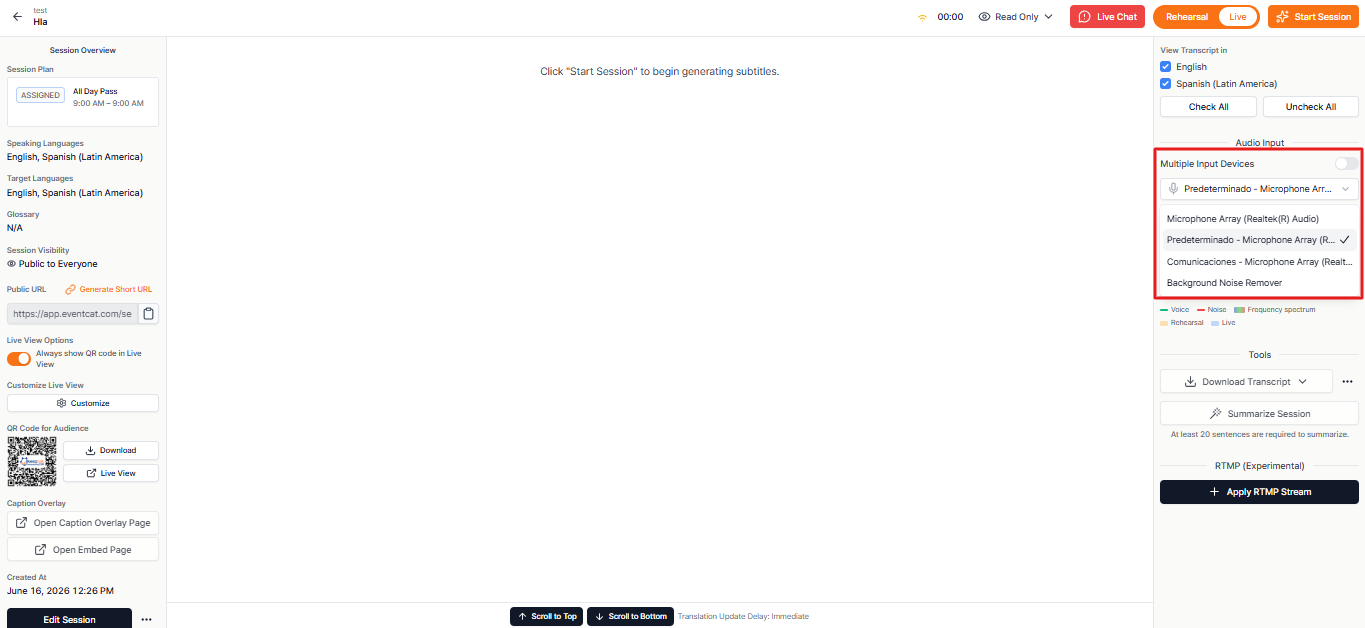
Open the session controller and locate Audio Input on the right sidebar.
Select the microphone or audio device you want to use, such as a built-in microphone, external microphone, wireless microphone, or audio interface.
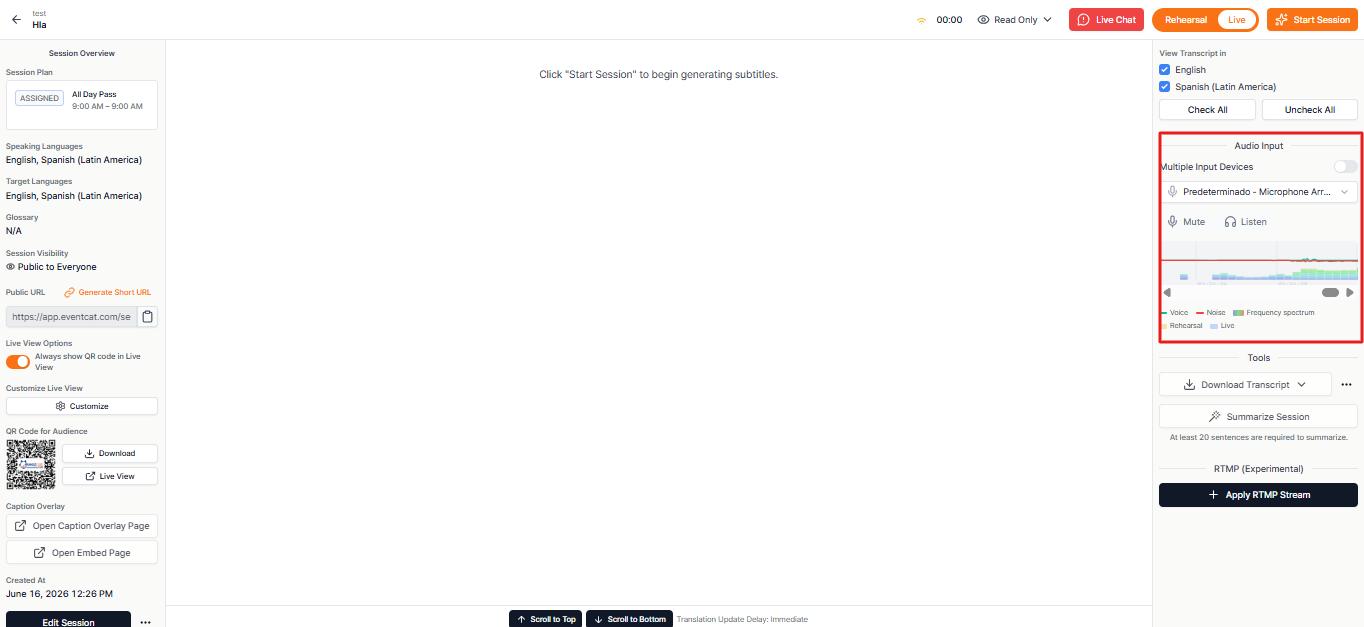
Speak into the microphone and check the live audio graph.
Confirm that the graph responds consistently when the speaker talks and that background noise remains at a manageable level.
A moving graph indicates that EventCAT is receiving audio from the selected device. Clear and stable input helps improve real-time caption and translation quality. The current guide already emphasizes checking the connected device, browser permissions, and surrounding noise before starting the session.
Use Mute and Listen
Mute: Temporarily prevents microphone audio from reaching the translation stream while keeping the audio connection active.
Listen: Lets you monitor the selected microphone through an output device.
When using Listen, select an output device before monitoring begins. Headphones are recommended to help prevent echo or audio feedback.
Using Multiple Input Devices
Turn on Multiple Input Devices when the session requires audio from more than one connected source. Confirm that each selected device is receiving the intended audio before going live.
If the Audio Graph Does Not Respond
Check the following:
The microphone or audio interface is properly connected.
The correct input device is selected in EventCAT.
Microphone access is enabled in the browser.
The device is not muted in the computer’s audio settings.
Another application is not exclusively using the microphone.
If EventCAT does not receive audio, real-time captions and translations cannot be generated.
Tips for Better Audio Recognition
Use the microphone in a quiet environment, keep it close to the speaker, and avoid excessive background noise. Before the event begins, use the live graph and Listen function to confirm that speech is clear, stable, and easy to monitor.
Related Article:
Was this article helpful?
That’s Great!
Thank you for your feedback
Sorry! We couldn't be helpful
Thank you for your feedback
Feedback sent
We appreciate your effort and will try to fix the article